 Smart Cleaner
A practical guide
How to free up iPhone storage, one decision at a time
First identify the category filling the device. Then choose one action you can review: a replaceable download, an unused app or a recording you no longer need. There is no need to clear everything at once.
The visual guide
A calmer cleanup sequence
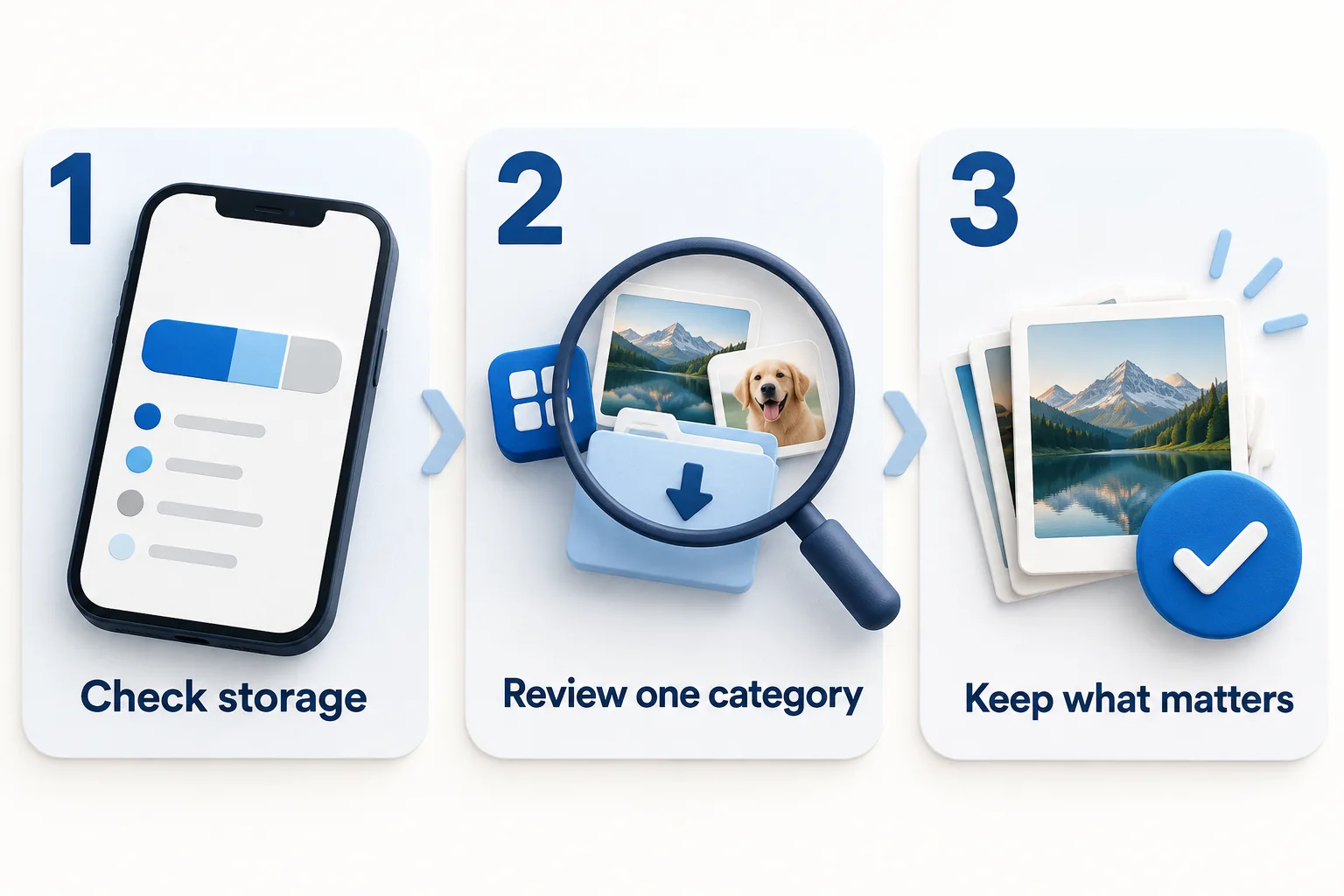
- Check Settings → General → iPhone Storage to identify the category using space.
- Review a small group of apps, downloads or media that you recognize.
- Keep important originals and verify independent copies before choosing removals.
Original AI-assisted illustration by the Smart Cleaner team · October 27, 2026. Conceptual illustration; not an app screenshot. When referencing this visual, credit Smart Cleaner and link to this guide.
1. Establish a baseline
Open Settings → General → iPhone Storage. Note the available space and the biggest category. If the warning is about iCloud instead, use the iCloud guide below: changing one quota does not necessarily change the other. Avoid comparing figures from different screens as though they measure the same thing.
2. Prefer a reversible first task
Look for an offline download that its own app lets you remove and download again. For an unused app, read the difference between offloading and deleting before choosing. Do not delete an app whose documents you have not backed up. If you only have two minutes, stop after identifying a safe next task.
3. Review media deliberately
If Photos is the main category, start with one large video or a small screenshot batch. Play the video or read the screenshot before selecting it. If you want to keep all photos, skip this deletion path and consider download management or a separately reviewed compression copy instead.
4. Check the outcome
Return to the same storage screen after your action and allow the display to update. Record what you actually changed. Do not add category estimates together: a large video can also be a duplicate candidate. Avoid emptying Recently Deleted merely to chase a target number.
Build a short checklist
Use the planner for a 2-, 5- or 10-minute session. Its suggestions come from what you enter, not from a scan. Smart Cleaner is optional for media review; native Settings and Photos remain useful tools.
Good to know
Can a cleaner increase my iPhone capacity?
No. Cleanup changes what occupies the existing storage; it does not add physical capacity.
Sources and further help
Checked October 27, 2026. Apple’s interface labels may vary by iOS version. App capabilities reflect its current listing; check the app for available controls and offers.