 Smart Cleaner
A practical guide
How to find and review large videos on iPhone
Review large recordings by usefulness as well as size. A long accidental video may be a good cleanup candidate; a large family recording may be the last thing you want to remove.
The visual guide
Review the whole recording
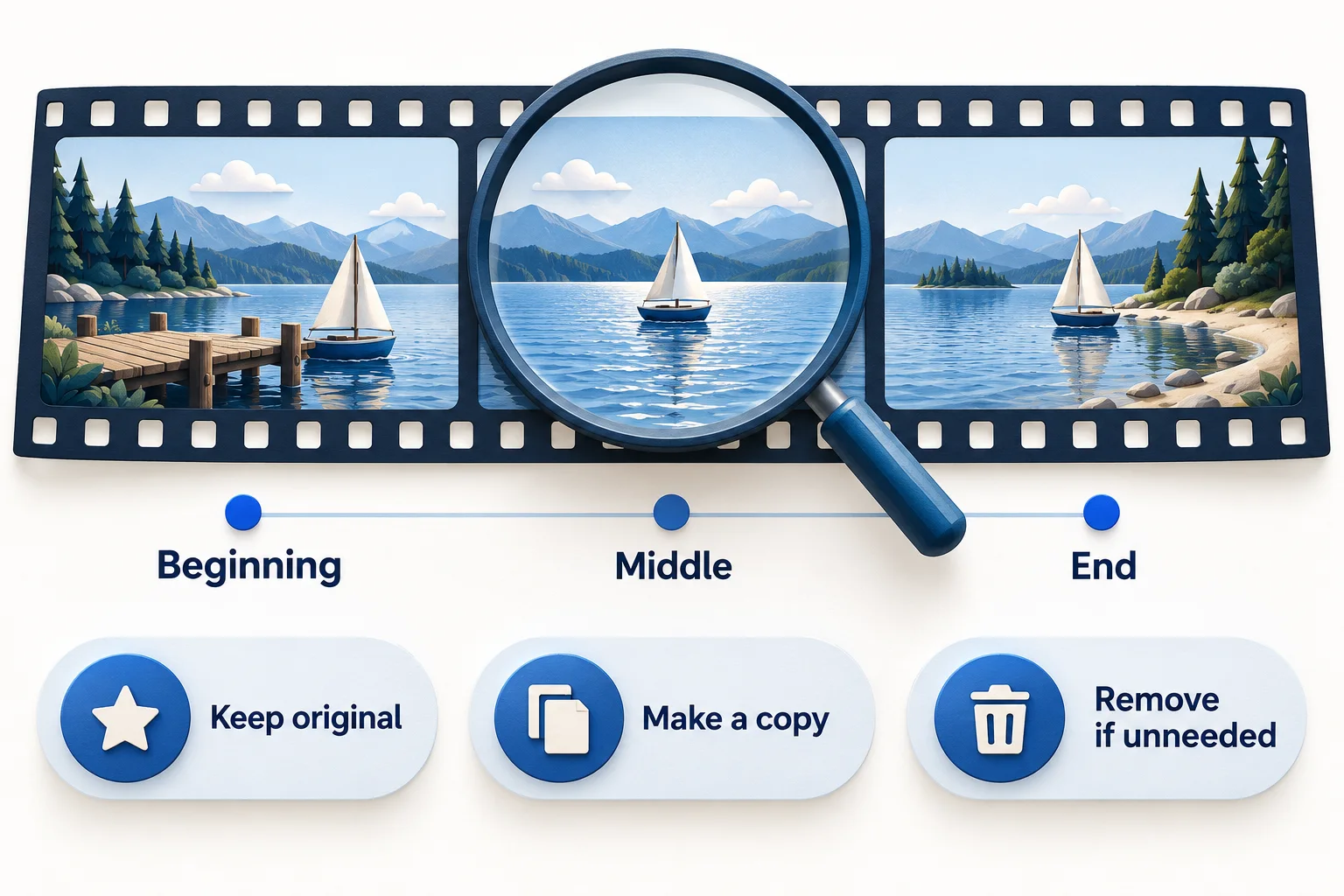
- Watch the beginning, middle and end before deciding a clip is unneeded.
- Keep the original when its quality or content matters. Open and verify any separate copy.
- Remove only what you no longer need. Duration alone does not establish file size, and a file size is not a guaranteed amount of space reclaimed.
Original AI-assisted illustration by the Smart Cleaner team · October 27, 2026. Conceptual illustration; not an app screenshot. When referencing this visual, credit Smart Cleaner and link to this guide.
Check whether media is the problem
Start with the iPhone Storage overview. If apps or downloads dominate, video cleanup may not be the most useful first step. If Photos is large, identify a few recordings you remember making, such as long events or screen recordings.
Review the native library or use an app
Browse your videos in Photos and inspect candidates. Do not assume every iOS layout provides a size-sorted library. Smart Cleaner offers a large-video review workflow when you grant access, which can help you focus on storage-heavy files without promising a particular saving.
Watch before deciding
Check the beginning, middle and end; an apparently accidental clip can contain something important. Decide whether you need the original, a smaller copy or neither. If you copy the video elsewhere, open the destination copy to verify it before relying on it.
Choose compression carefully
If you need the recording but not the original quality for a particular use, try native compression and compare output. It needs room for working files and can temporarily increase storage usage. This website does not process video files.
Recheck storage after the actual action
Review the same storage measure after changes. File sizes are not additive savings forecasts when iCloud optimization or overlapping groups are involved. Leave recovery options intact until you are confident in your choices.
Good to know
Can this page show my biggest video?
No. The website does not have access to your photo library. Use Photos or the native app with your permission.
Sources and further help
Checked October 27, 2026. Apple’s interface labels may vary by iOS version. App capabilities reflect its current listing; check the app for available controls and offers.