 Smart Cleaner
A practical guide
How to make a smaller photo copy on iPhone
To make a smaller attachment, reduce dimensions or choose an appropriate output quality. Save a new copy and inspect it. This is different from reducing the storage used by your Photos library.
The visual guide
A smaller copy keeps your options open
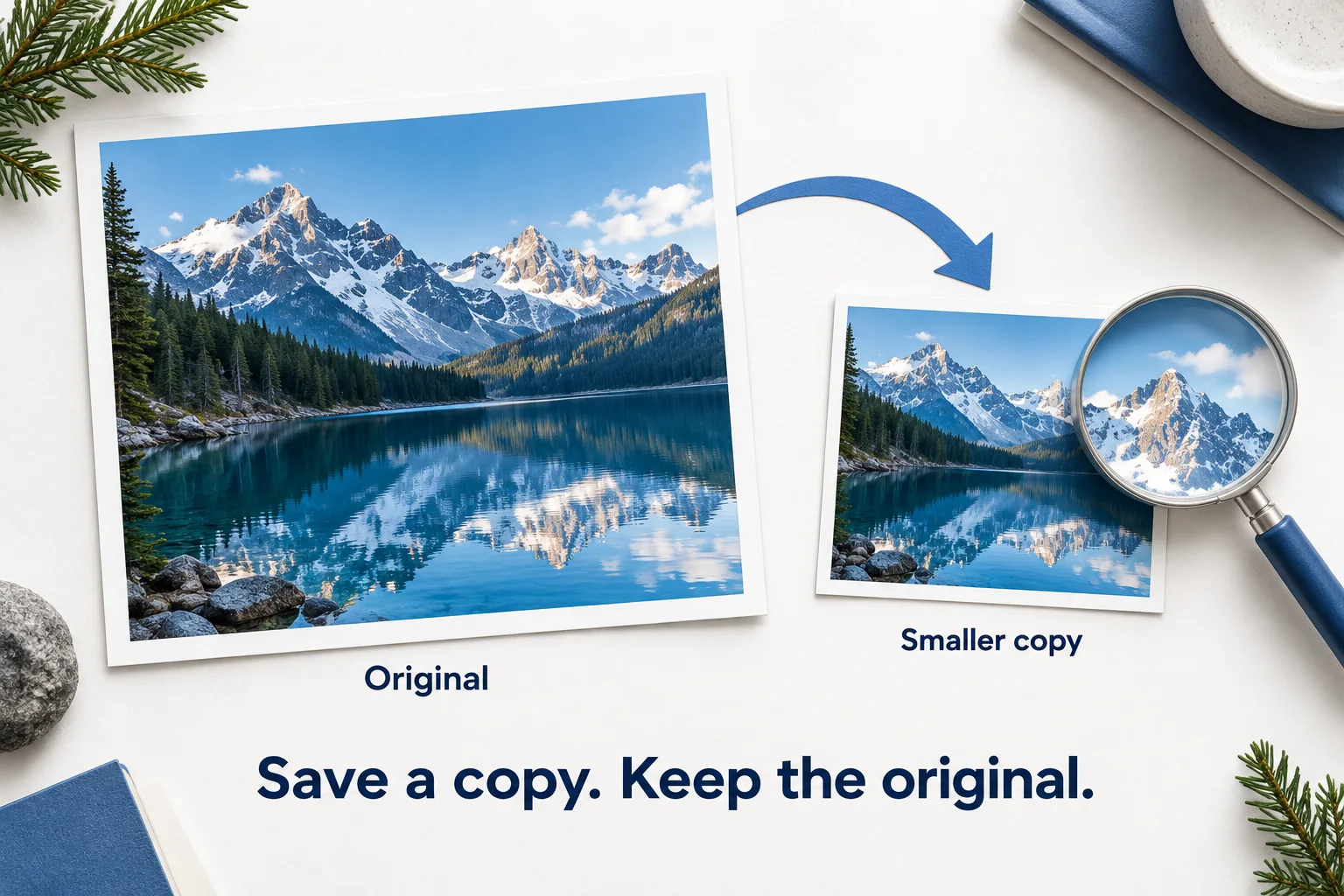
- Choose dimensions and an output format that the destination accepts.
- Compare actual file size and inspect details such as faces or small text. A new file can be larger than the original.
- Verify the saved copy opens. Creating it does not delete the original or automatically free Photos library space. The illustration is conceptual, not a measured compression result.
Original AI-assisted illustration by the Smart Cleaner team · October 27, 2026. Conceptual illustration; not an app screenshot. When referencing this visual, credit Smart Cleaner and link to this guide.
Start from the intended use
Check the destination’s size or format requirement first. A profile picture may need fewer pixels than a print. For documents, inspect fine text after compression. Keep a full-quality original when you may edit, crop or print the image later.
Choose a supported source
The browser tool accepts JPEG, PNG and WebP within its displayed size and pixel limits. HEIC, RAW, animated images and Live Photo video are not part of this first tool. If your file is unsupported, keep the original and use a compatible native export workflow rather than changing its extension.
Adjust and compare
Choose a maximum edge length and output format. Quality affects JPEG and WebP; PNG uses lossless encoding and may be larger. For transparency, keep PNG/WebP or explicitly choose a JPEG background. Press Create copy and compare the actual bytes and preview.
Save a copy you can open
Use Download copy. On browsers that support file sharing, Save or share offers another route. On iPhone, the browser may show a preview or download into Files; follow its Save/Share controls and verify the saved file. A successful encode is not proof that the file has been saved to Photos.
Keep the privacy boundary clear
Selected media is processed in this browser, not sent to our server. Reset releases the tool’s previews; it does not remove a copy you have already saved. Creating a smaller file does not delete the original or automatically reclaim library space.
Good to know
Does lower quality always mean a smaller file than my original?
No. The original may already be efficient, and changing format can increase size. Compare the actual result before saving.