 Smart Cleaner
A practical guide
Clean up iPhone screenshots without losing useful records
Review screenshots in small groups. Keep receipts, reference material and anything you cannot replace; a screenshot is not disposable just because it is old.
The visual guide
Separate useful records from temporary captures
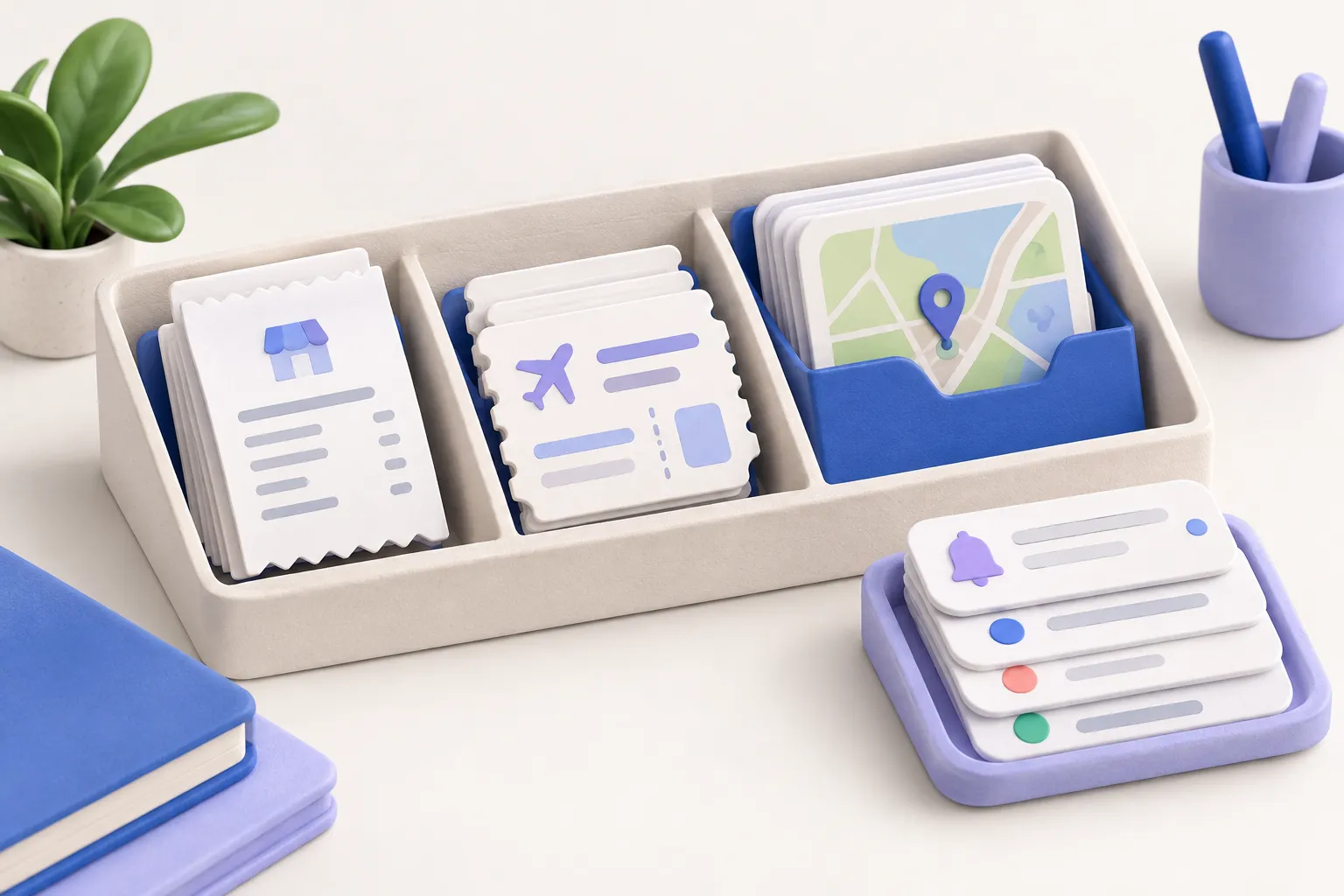
- Keep receipts, instructions and documents you cannot replace.
- Check that any independent copy opens and its text is readable.
- Review the final selection and understand iCloud Photos deletion sync.
Original AI-assisted illustration by the Smart Cleaner team · October 27, 2026. Conceptual illustration; not an app screenshot. When referencing this visual, credit Smart Cleaner and link to this guide.
1. Open the screenshot collection
In Photos, locate Screenshots under the available media-type collections. Labels and placement vary by iOS version. Review a manageable date range rather than selecting the entire collection. Smart Cleaner also offers a dedicated screenshot review workflow.
2. Decide what still has a purpose
Separate temporary codes, expired tickets and accidental captures from receipts, instructions and ongoing projects. A record may contain sensitive information; avoid uploading it to unfamiliar tools. A local review can happen without sending the image to a web service.
3. Preserve important records first
Open each record you plan to keep and verify that dates, amounts and text remain readable. If you move a record to another app or independent backup, confirm the copy opens before changing the original. An album inside the same synced Photos library is not a separate backup.
4. Confirm the final selection
Check selected thumbnails before confirming deletion. With iCloud Photos, deletion syncs across the library. Leave Recently Deleted available for recovery unless you have deliberately verified that permanent removal is appropriate. Recheck storage later rather than promising a fixed saving per screenshot.
Good to know
Are screenshots smaller than photos?
Not always. Dimensions, content and encoding affect size. Count alone is a poor estimate of storage.
Can the duplicate finder find similar screenshots?
It finds byte-identical selected files only. Different crops or edited text will not match.
Sources and further help
Checked October 27, 2026. Apple’s interface labels may vary by iOS version. App capabilities reflect its current listing; check the app for available controls and offers.